ADB Debugging Your Wear OS Device over WLAN
(text update for Wear OS 3+)
First, you'll need ADB on your computer.
https://developer.android.com/tools/releases/platform-tools
If your Wear OS device isn't set to development mode, do so now: go to the system information and tap the build number entry a few times.
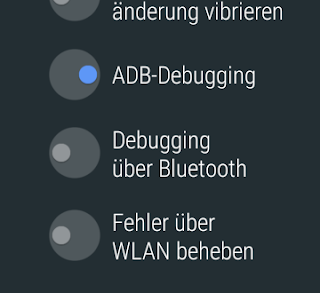 Enable ADB debugging in the developer's menu.
Make sure your Wear OS device is connected to the same WLAN as your computer.
Now enable "Debugging over WLAN" in the developer's menu. On a Wear OS device configured to use German, I found that to be slightly confusing, as "Debugging" is not translated for Bluetooth, but it is for WLAN. So "Fehler über WLAN beheben" it is.
After enabling WLAN debugging, the device will display its IP address. Let's assume it is "192.168.178.84".
Finally, connect to the device using ADB:
 Enable ADB debugging in the developer's menu.
Make sure your Wear OS device is connected to the same WLAN as your computer.
Now enable "Debugging over WLAN" in the developer's menu. On a Wear OS device configured to use German, I found that to be slightly confusing, as "Debugging" is not translated for Bluetooth, but it is for WLAN. So "Fehler über WLAN beheben" it is.
After enabling WLAN debugging, the device will display its IP address. Let's assume it is "192.168.178.84".
Finally, connect to the device using ADB:
$ adb connect 192.168.178.84
connected to 192.168.178.84:5555
...since Wear OS 3 (?), the port number is variable and displayed alongside with a port number which will be needed for "connect":You need to pair your ADB session with that port (not the previous one):
$ adb pair 192.168.178.84:1234
connected to 192.168.178.84:1234
The pairing requires entering the security code displayed on the watch.From here, you can continue as with "old" Wear OS versions.Don't forget the port number is the first one, not the one used for pairing.$ adb -s 192.168.178.84:5555 shell...or installing an APK:
$ adb -s 192.168.178.84:5555 install filename
Success

If you get an error message related to SDK versions, add the option "--bypass-low-target-sdk-block".

